 WaSparks
Ask any small team how they feel about writing WhatsApp templates and you will hear the same answers. It takes too long. It gets rejected for a reason nobody can quite see. And when a customer is waiting, the person at the desk types a rushed reply with a spelling mistake in it.
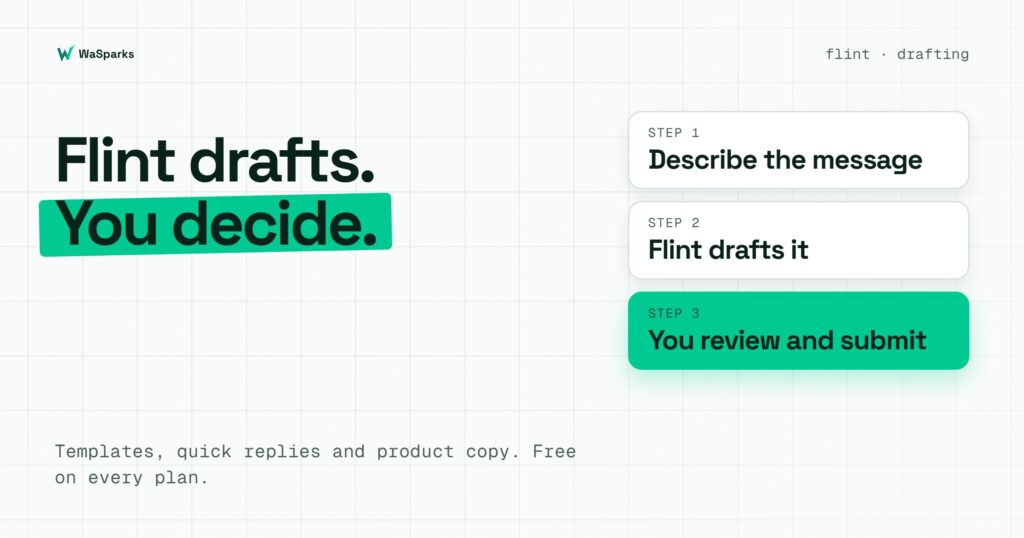
Flint is the assistant built into WaSparks to take the blank page out of that work. It drafts, you decide. This guide explains what Flint does today, what it does not do, and how to get good drafts out of it. If you want the details of the feature first, the Flint page has them.
What Flint does (and what it does not)
Flint has two jobs, and they are at different stages.
Drafting is live, and free on every plan. That includes the 30-day trial. Flint can draft:
- Templates. Describe the message and Flint drafts a WhatsApp template that follows Meta’s template guidelines. You review, edit and submit it.
- Quick replies. Saved answers drafted in your tone, ready for your whole team to send.
- Product copy. Descriptions for the products in your catalog.
- Product picks. When a customer asks, Flint suggests the right product for your team to send.
Answering customers is in pilot. When it is switched on for your account, Flint answers customers who message you, inside the 24-hour window, using only your business profile, FAQ and catalog. When it is not sure, it says so and hands the chat to your team, tagged and waiting in the inbox. You decide what it may handle and when a person takes over. This is not on by default. You ask us to switch it on.
Two things Flint does not do: it does not message customers first (messages you start still use approved templates), and it does not guarantee that Meta will approve a template. Meta reviews every template itself.
Why drafting is where most teams lose time
Templates get rejected for fixable reasons. Variables out of order, a body that starts with a variable, a missing sample value, or a promotional line inside a utility message. These are small errors that cost a day each time.
Quick replies are written once, badly. A saved reply is only as good as the person who wrote it on a busy afternoon. Typos and inconsistent tone follow your team around.
Product copy is slow. Writing 40 descriptions for a catalog is the kind of job that gets postponed for weeks.
Drafting tools help most when the work is repetitive, rule-bound and easy to review. That describes all three.
How to get a good draft from Flint
The quality of a draft depends on the quality of your instruction. Give Flint four things.
1. The purpose. “A reminder for tomorrow’s appointment” is clearer than “a message for customers.”
2. The category you intend. Say whether it is a utility update or a marketing offer. If you want utility, tell Flint to keep it free of offers.
3. The details that change. Name what should vary per customer, such as the name, date and time. Flint will use numbered variables such as {{1}} and {{2}}, which is how Meta expects them.
4. The tone. “Warm and short” or “formal” changes the result more than you would think.
An example
Instruction: “Write a utility template reminding a customer about tomorrow’s appointment. Include their name and the time. Keep it short and friendly, with no offers.”
A good draft will look something like:
“Hi {{1}}, this is a reminder that your appointment is tomorrow at {{2}}. Reply here if you need to reschedule.”
Then you do the part that matters. Read it. Does it say what you mean? Does it contain anything promotional? Are the sample values sensible? Edit anything that is off, and only then submit it for Meta’s review.
See it live: Try Flint’s “Ask Flint” demo, then message our demo number to see a reply from the customer’s side. Tap here to test on WhatsApp (replies in under 5 seconds)
A review checklist for any draft
Whoever wrote it, a person or Flint, check the same things before submitting a template:
- The category matches the content. Offers and festival greetings are marketing.
- Variables are numbered in order, and the body does not start or end with one.
- Every variable has a realistic sample value.
- The message says who you are and why they are hearing from you.
- Marketing templates include a clear way to opt out.
- Nothing asks for card numbers, bank details or ID numbers.
Using Flint for quick replies
Quick replies are the other place where teams feel the benefit straight away.
- List the ten questions your team answers most often: opening hours, location, prices, delivery times, returns.
- Ask Flint to draft an answer for each, in your tone.
- Edit them so they are accurate for your business. Flint does not know your real prices or policies unless you tell it.
- Save them as shared quick replies for the team, or keep personal ones for yourself.
In the inbox, a quick reply can be sent as text, an image or a document, so one saved answer can carry a price list or a map.
Using Flint for catalog copy
If you use WaSparks to manage a catalog, Flint can draft product descriptions. Give it the product name, key details and any rules about tone, then review each one. Catalog sending works on dedicated API numbers, but is not available on numbers that are linked to the WhatsApp Business app.
What to watch for
Check facts every time. A draft is a starting point. Prices, dates and policies must be yours.
Do not skip the category check. A well-written template with the wrong category is still billed at the category Meta assigns.
Keep a human in charge. Drafting speeds up writing. It does not replace judgement about what your customers should receive.
The takeaway
Flint takes the first draft off your plate: templates, quick replies and product copy, free on every plan. You still review, edit and submit, and Meta still makes its own decision. Customer answering is in pilot, and you can ask us to switch it on. To try drafting on your own number, start 30 days free, or read how chat flows can handle the common questions automatically.
Found this useful? Share it with your team.