 WaSparks
The alert arrives on a normal Tuesday. Your WhatsApp number’s quality rating has dropped from green to yellow, or worse, to red. A campaign that went out yesterday is paused. Your team is asking whether the number is about to be banned, and you are not sure what to say.
Stay calm. A yellow or red rating is a warning, not a ban. It means that too many customers have blocked or reported your messages recently. The faster you respond, the better your chances of recovering. This is the sequence we recommend.
What the rating actually measures
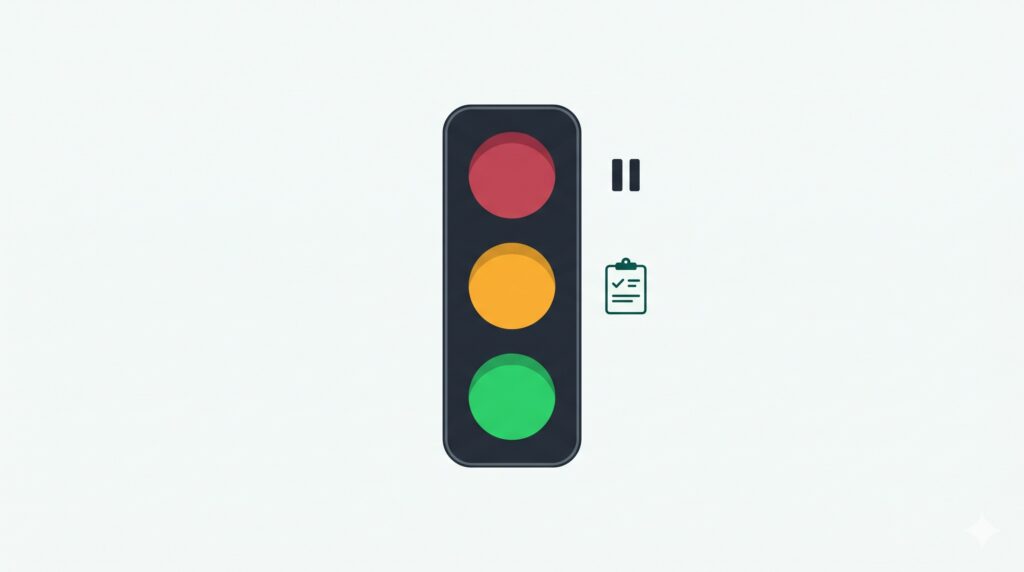
Meta tracks how customers react to your messages. Blocks and reports weigh on the rating. Positive engagement helps it. The rating is shown as green (high), yellow (medium) or red (low), and it applies to the phone number.
A low rating can limit your ability to move up messaging tiers and can put your number at risk of restrictions if the problem continues. Meta’s current rules decide the specifics, so check its documentation for the latest.
The cause is almost never one dramatic message. It is usually a pattern: a stale list, a pushy template, or a send to people who never asked to hear from you.
The 4-step emergency SOP
Step 1: Pause outbound marketing now
Stop every scheduled or running promotional campaign on the affected number. Continuing to send while the rating is low produces more blocks and makes recovery slower.
In WaSparks, sending pauses on its own when the quality rating drops. Check the campaigns list anyway, and cancel any scheduled sends you do not want to resume.
Keep answering inbound messages. Replying to customers who write to you is not the problem, and it is the best thing you can do to rebuild trust.
Step 2: Review the content you recently sent
Open the last few templates and campaigns that went out before the drop. Look for:
- Pushy or repeated wording. Aggressive urgency, shouting in capitals, or the same offer sent several times.
- Misleading claims. Discounts or promises you cannot honour.
- Missing context. A message that does not say who you are or why they are hearing from you.
- No clear opt-out. Customers who cannot easily stop messages will report them instead.
Rewrite any template that fails this check, and submit the new version to Meta for review before you use it.
Step 3: Spend 48 hours on useful conversations
Rebuild engagement with replies rather than broadcasts. Respond quickly to customer messages, resolve open issues, and send only expected, transactional messages such as order and delivery updates to people who are waiting for them.
The aim is simple: positive interactions should outnumber negative ones. We cannot promise a particular recovery time, because Meta’s rating responds to what customers do over time.
Step 4: Clean your list before you resume
Do not go back to the same audience you used before. Check:
- Opt-in. Remove anyone who never agreed to receive marketing messages.
- Opt-outs. Anyone who replied STOP must be excluded. WaSparks does this automatically for every future campaign, but check any list you import from elsewhere.
- Recency. Start with customers who engaged recently and leave older, colder contacts for later.
- Size. Restart with a smaller send and increase gradually while watching the rating.
How to resume safely
When the rating is back to green, do not return to full volume overnight.
- Send a small test first. Use your most engaged customers and watch the result.
- Raise volume in steps. Increase gradually across days.
- Check the rating after each send. If it moves back toward yellow, stop and review.
Pacing protects a number, and WaSparks paces campaign sending to your messaging tier automatically.
See it live: Good conversations are the fastest way to rebuild trust. Tap here to test a reply on WhatsApp (replies in under 5 seconds)
Prevent it from happening again
Send only to people who opted in. This is the single most effective safeguard.
Keep marketing off your support number. If you run both on one number, a promotional problem damages support too. A separate number for sales and campaigns contains the risk.
Make opting out easy. A visible way to say stop is better than a report.
Use account health as a daily check. Your quality rating, messaging tier and number status sit in the app. Look at them before you launch a campaign, not after.
Estimate before you send. Every campaign shows the estimated Meta cost at review, which is also a good moment to ask whether this send is worth the risk.
The takeaway
A yellow or red rating is a signal to slow down and clean up, not a reason to panic. Pause marketing, fix the content, rebuild goodwill with real conversations, and return with a cleaner list and smaller sends. To keep an eye on your number’s health every day, see the features page or start on Ember.
Found this useful? Share it with your team.