 WaSparks
A business connects a new WhatsApp number, uploads a list of 5,000 customers and schedules a big announcement for the next morning. By lunchtime, only a fraction of the messages have gone out, and some that did were reported as unwanted. The owner assumes the platform is broken. It is not. The number simply hit a limit it did not know it had.
That limit is called a messaging tier. Understanding it before your first big campaign saves you from a stalled send and, more importantly, from damaging a number you may have spent months building. This guide explains how tiers work, how a number moves up, and a safe warm-up approach for new numbers.
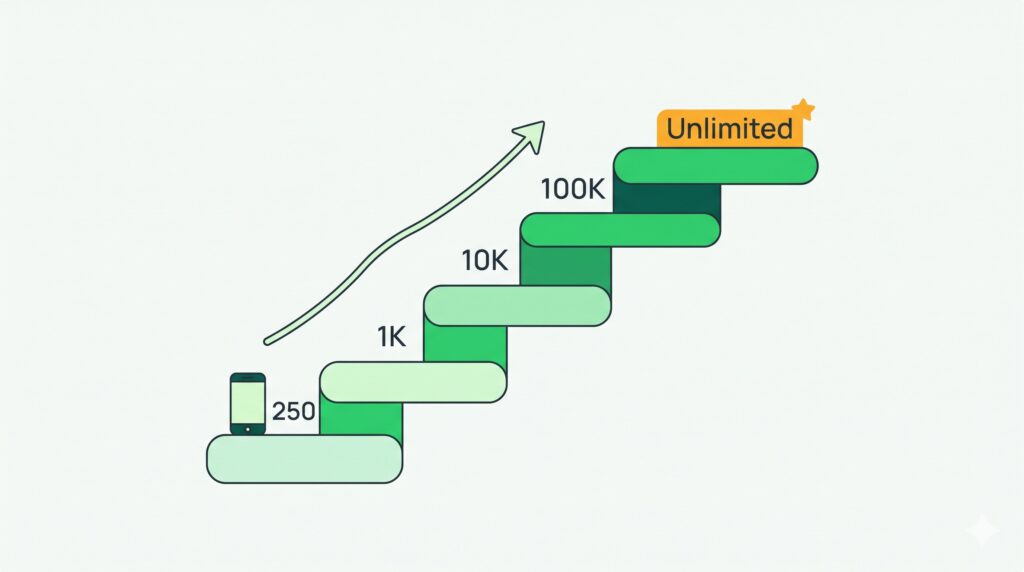
What a messaging tier is
A messaging tier is the number of different customers your business can start a conversation with in a 24-hour period, using a template message. It is set by Meta for each WhatsApp number.
Two details matter:
It counts unique customers. Sending three messages to the same person counts as one customer against the limit, not three.
It applies to conversations you start. Replies within the 24-hour customer service window, after a customer messages you first, do not count against the tier.
The tiers run in steps: 250, 1,000, 10,000, 100,000 and unlimited customers per day. A new number usually starts at the bottom.
How a number moves up a tier
Meta decides, and the rules can change, so check its current documentation. In general, two things drive an upgrade:
Volume. You need to actually use your current tier. Meta looks at whether you have been messaging a meaningful share of your limit over a recent period.
Quality. Customers must respond well to your messages. If many people block or report the number, your quality rating drops and the upgrade does not happen. A low rating can also put you at risk of being limited.
Business verification in Meta Business Manager also supports higher limits. Our green tick guide explains the difference between verification and the badge.
Why the tier trap catches new numbers
The mistake is treating the tier as a technical setting you can ignore. A few things go wrong:
Starting big on day one. A new number that suddenly sends thousands of messages looks like spam to customers and to Meta. Even if the sends were allowed, the reports would hurt the quality rating.
Treating all lists the same. A list of customers who opted in and recently bought from you behaves very differently from an old, cold list.
Chasing the tier instead of the quality. A higher tier is useful only if your messages are welcome. Sending more of what people ignore moves you backwards.
A safe warm-up approach
Warm-up means growing your sending volume gradually while keeping responses and quality healthy.
- Start with your warmest customers. Begin with people who recently bought, enquired or opted in. They are least likely to report you.
- Increase in steps, not jumps. Raise volume gradually over days, instead of sending your whole list at once.
- Send relevant, clear messages. Say who you are, why you are messaging, and give a clear way to opt out.
- Watch the quality rating daily. If it drops, slow down before it falls further.
- Honour opt-outs immediately. Anyone who replies STOP should not receive another campaign.
See it live: Curious how a customer’s reply reaches your team? Tap here to test on WhatsApp (replies in under 5 seconds)
How WaSparks handles this
WaSparks builds the warm-up into the campaign tool, so you do not have to do the arithmetic by hand.
- Paced to your limits. Sending respects your Meta messaging tier and daily cap.
- Warm-up for new numbers. Volume ramps up gradually over an 8-day schedule and only advances on real sends.
- Pauses on poor quality. If your quality rating drops, sending pauses on its own.
- Visible health. Your quality rating and messaging tier are shown in the app, alongside the warm-up progress.
- STOP is automatic. A customer who replies STOP is excluded from every future campaign.
Because the estimate is shown before a campaign sends, you also see the expected Meta cost for the audience you chose. You can estimate it for any country and category with the pricing calculator.
What to do if your campaign is slower than you expected
- Check your tier first. If your list is larger than your daily limit, the send continues over several days. That is expected behaviour.
- Check your quality rating. A yellow or red rating can slow or pause sending.
- Check the template status. A paused or rejected template cannot send.
- Check opt-outs. Contacts who replied STOP are skipped and will not be counted.
The takeaway
Messaging tiers are not an obstacle. They are a pacing system that rewards numbers customers welcome. Start with your warmest contacts, grow in steps, protect your quality rating, and let the tier rise as a result. You can connect a number and see its tier and quality rating on the free Ember trial. Campaigns and the warm-up schedule come with Spark and above, and the features page has the details.
Found this useful? Share it with your team.